LinkedIn sign-in with Embedded Wallets
Sign In with LinkedIn lets users authenticate with a LinkedIn account. Choose the default connection for the quickest setup, or configure a custom connection when you need your own LinkedIn app, consent screen, or identity provider.
Default LinkedIn sign-in
The default connection uses the LinkedIn OAuth credentials managed by Embedded Wallets. You don't need a LinkedIn developer application.
Caveats
- The LinkedIn consent screen identifies the OAuth application managed by Embedded Wallets, not your dapp.
- You can't change the LinkedIn application configuration, such as its scopes or branding, because you don't own the credentials.
- The default connection and a custom connection are separate connections, so they produce different wallet addresses for the same person unless you link them with a group connection.
Configure the default connection
- Open your project in the MetaMask Developer Dashboard.
- Select Social Connections.
- Enable LinkedIn.
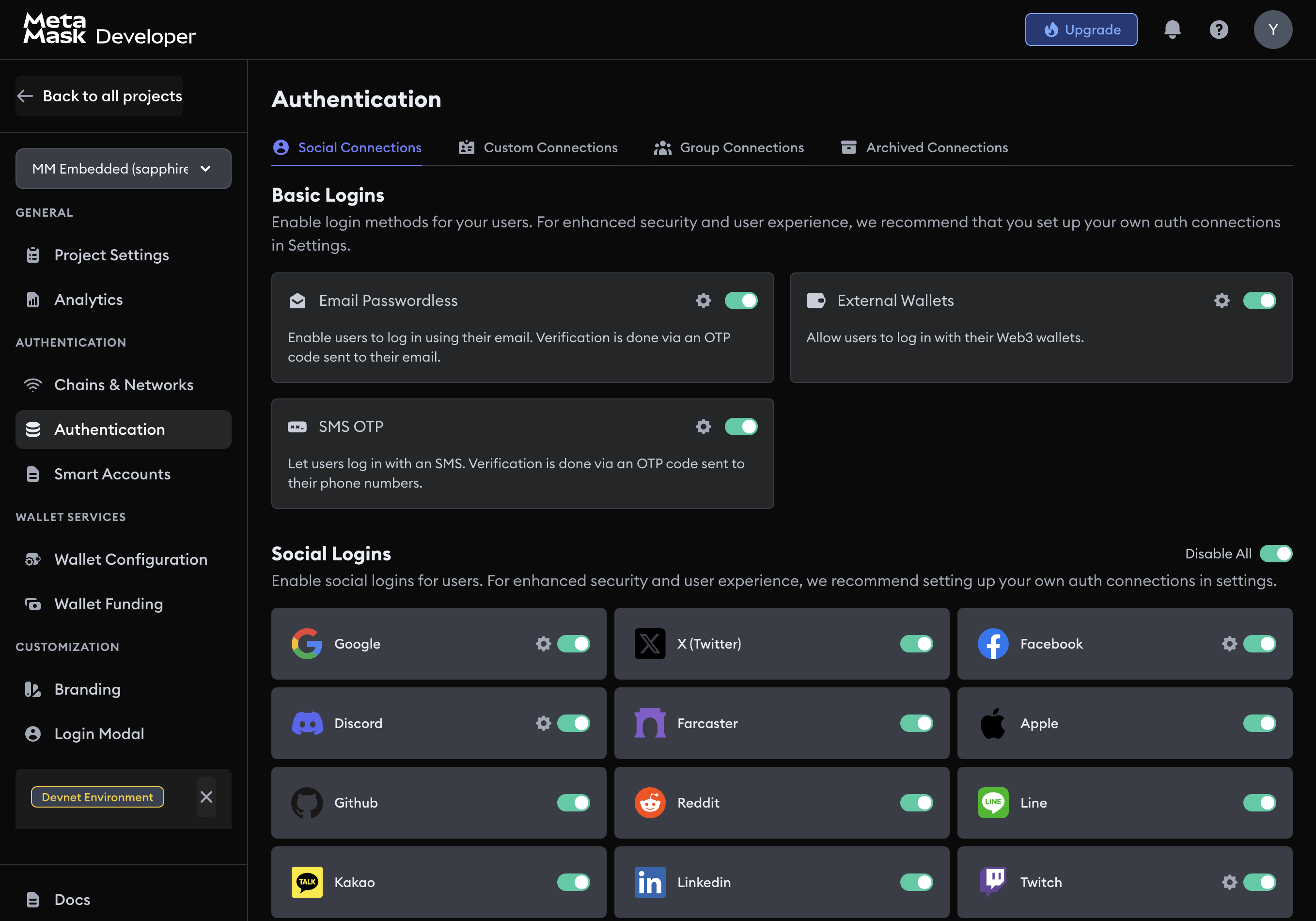
The SDK reads the connection from the dashboard. You don't need to add LinkedIn credentials to your SDK configuration.
Custom LinkedIn sign-in
Use a custom connection when the LinkedIn authorization belongs to your dapp or an identity platform you control. Your LinkedIn credentials sit in Auth0 or your own backend.
Google, Discord, and Twitch connections take only a client ID, because they accept
https://auth.web3auth.io/auth as a redirect URI for a public client.
LinkedIn OpenID Connect requires a client secret to exchange the authorization code, so Embedded
Wallets doesn't accept a LinkedIn client ID on the social connection.
Decide between the default and a custom connection before you onboard users. Moving from the default LinkedIn connection to Auth0 or your own JWT connection changes every user's wallet address unless both connections are in a group connection with matching user identifiers.
Auth0
- Configure LinkedIn as a social connection in Auth0.
- Create an Auth0 connection in the MetaMask Developer Dashboard.
- For an implicit flow, call Embedded Wallets with the Auth0 connection ID and set the Auth0
connection name to
linkedin. - For a JWT flow, authenticate with the Auth0 SDK, retrieve its raw ID token, and pass that token to Embedded Wallets.
Firebase Authentication and Amazon Cognito don't offer LinkedIn as a first-party social provider.
Your own backend
- Complete Sign In with LinkedIn in your client and send the result to your backend.
- Exchange the authorization code with LinkedIn's token endpoint using your client secret, then validate the ID token before trusting the identity.
- Issue a fresh JWT with an
iatno more than 60 seconds old and expose the signing public key through a JSON Web Key Set (JWKS) endpoint. - Create a custom JWT connection that validates your issuer, audience, JWKS, and user identifier.
- Pass your JWT and custom connection ID to Embedded Wallets.
Don't send a LinkedIn client secret to a client application.
Group LinkedIn connections
A group connection gives the same person one wallet address across several login methods.
Default LinkedIn and LinkedIn through Auth0 are separate connections.
They produce different wallet addresses unless you group them and every connection in the group
uses the same JWT user identifier (email or an aligned sub).
Pass both the child connection ID and grouped connection ID when you bypass the modal:
await connectTo(WALLET_CONNECTORS.AUTH, {
  authConnection: AUTH_CONNECTION.CUSTOM,
  authConnectionId: '<LINKEDIN_AUTH_CONNECTION_ID>',
  groupedAuthConnectionId: '<GROUPED_AUTH_CONNECTION_ID>',
  idToken,
})
Usage examples
The implicit examples open a LinkedIn or Auth0 authorization flow. The JWT examples assume your Auth0 or backend integration has already returned a fresh ID token.
Default implicit flow
- React
- Vue
- JavaScript
- React Native
- Android
- iOS
- Flutter
- Unity
- Unreal Engine
import { AUTH_CONNECTION, WALLET_CONNECTORS } from '@web3auth/modal'
import { useWeb3AuthConnect } from '@web3auth/modal/react'

const { connectTo } = useWeb3AuthConnect()

await connectTo(WALLET_CONNECTORS.AUTH, {
  authConnection: AUTH_CONNECTION.LINKEDIN,
})
import { AUTH_CONNECTION, WALLET_CONNECTORS } from '@web3auth/modal'
import { useWeb3AuthConnect } from '@web3auth/modal/vue'

const { connectTo } = useWeb3AuthConnect()

await connectTo(WALLET_CONNECTORS.AUTH, {
  authConnection: AUTH_CONNECTION.LINKEDIN,
})
import { AUTH_CONNECTION, WALLET_CONNECTORS } from '@web3auth/modal'

await web3auth.connectTo(WALLET_CONNECTORS.AUTH, {
  authConnection: AUTH_CONNECTION.LINKEDIN,
})
import { AUTH_CONNECTION, useWeb3AuthConnect } from '@web3auth/react-native-sdk'

const { connectTo } = useWeb3AuthConnect()

await connectTo({
  authConnection: AUTH_CONNECTION.LINKEDIN,
})
val response = web3Auth.connectTo(
  LoginParams(AuthConnection.LINKEDIN)
)
let response = try await web3Auth.connectTo(
    loginParams: LoginParams(authConnection: .LINKEDIN)
)
final response = await Web3AuthFlutter.login(
  LoginParams(loginProvider: Provider.linkedin),
);
var options = new LoginParams
{
    loginProvider = Provider.LINKEDIN
};

web3Auth.login(options);
FWeb3AuthLoginParams LoginParams;
LoginParams.LoginProvider = TEXT("linkedin");

UWeb3AuthSDK::GetInstance()->Login(LoginParams);
Auth0 implicit flow
These examples use the Auth0 custom connection configured for your SDK. Replace the connection ID and domain with your Auth0 values. For Android and iOS, add the connection to authConnectionConfig during initialization. Flutter, Unity, and Unreal Engine currently use their platform's loginConfig; configure it by following the custom authentication guide for Flutter, Unity, or Unreal Engine.
- React
- Vue
- JavaScript
- React Native
- Android
- iOS
- Flutter
- Unity
- Unreal Engine
await connectTo(WALLET_CONNECTORS.AUTH, {
  authConnection: AUTH_CONNECTION.CUSTOM,
  authConnectionId: '<AUTH0_CONNECTION_ID>',
  extraLoginOptions: {
    connection: 'linkedin',
  },
})
await connectTo(WALLET_CONNECTORS.AUTH, {
  authConnection: AUTH_CONNECTION.CUSTOM,
  authConnectionId: '<AUTH0_CONNECTION_ID>',
  extraLoginOptions: {
    connection: 'linkedin',
  },
})
await web3auth.connectTo(WALLET_CONNECTORS.AUTH, {
  authConnection: AUTH_CONNECTION.CUSTOM,
  authConnectionId: '<AUTH0_CONNECTION_ID>',
  extraLoginOptions: {
    connection: 'linkedin',
  },
})
await connectTo({
  authConnection: AUTH_CONNECTION.CUSTOM,
  authConnectionId: '<AUTH0_CONNECTION_ID>',
  extraLoginOptions: {
    connection: 'linkedin',
  },
})
val response = web3Auth.connectTo(
  LoginParams(
    authConnection = AuthConnection.CUSTOM,
    authConnectionId = "<AUTH0_CONNECTION_ID>",
    extraLoginOptions = ExtraLoginOptions(
      domain = "https://<AUTH0_DOMAIN>",
      connection = "linkedin"
    )
  )
)
let response = try await web3Auth.connectTo(
    loginParams: LoginParams(
        authConnection: .CUSTOM,
        authConnectionId: "<AUTH0_CONNECTION_ID>",
        extraLoginOptions: ExtraLoginOptions(
            domain: "https://<AUTH0_DOMAIN>",
            connection: "linkedin"
        )
    )
)
final response = await Web3AuthFlutter.login(
  LoginParams(
    loginProvider: Provider.jwt,
    extraLoginOptions: ExtraLoginOptions(
      domain: 'https://<AUTH0_DOMAIN>',
      verifierIdField: 'sub',
      connection: 'linkedin',
    ),
  ),
);
var options = new LoginParams
{
    loginProvider = Provider.JWT,
    extraLoginOptions = new ExtraLoginOptions
    {
        domain = "https://<AUTH0_DOMAIN>",
        verifierIdField = "sub",
        connection = "linkedin"
    }
};

web3Auth.login(options);
The current Unreal Engine SDK documentation provides this flow through Blueprint configuration, not a verified C++ example. Configure the Auth0 connection by following the Unreal Engine custom authentication guide.
JWT flow
Obtain a fresh ID token from your identity aggregator or backend before calling Embedded Wallets. The token issuer and claims must match the custom connection in the dashboard.
- React
- Vue
- JavaScript
- React Native
- Android
- iOS
- Flutter
- Unity
- Unreal Engine
- Node.js
const idToken = await getIdToken()

await connectTo(WALLET_CONNECTORS.AUTH, {
  authConnection: AUTH_CONNECTION.CUSTOM,
  authConnectionId: '<CUSTOM_CONNECTION_ID>',
  idToken,
})
const idToken = await getIdToken()

await connectTo(WALLET_CONNECTORS.AUTH, {
  authConnection: AUTH_CONNECTION.CUSTOM,
  authConnectionId: '<CUSTOM_CONNECTION_ID>',
  idToken,
})
const idToken = await getIdToken()

await web3auth.connectTo(WALLET_CONNECTORS.AUTH, {
  authConnection: AUTH_CONNECTION.CUSTOM,
  authConnectionId: '<CUSTOM_CONNECTION_ID>',
  idToken,
})
const idToken = await getIdToken()

await connectTo({
  authConnection: AUTH_CONNECTION.CUSTOM,
  authConnectionId: '<CUSTOM_CONNECTION_ID>',
  idToken,
})
val response = web3Auth.connectTo(
  LoginParams(
    authConnection = AuthConnection.CUSTOM,
    authConnectionId = "<CUSTOM_CONNECTION_ID>",
    idToken = idToken
  )
)
let response = try await web3Auth.connectTo(
    loginParams: LoginParams(
        authConnection: .CUSTOM,
        authConnectionId: "<CUSTOM_CONNECTION_ID>",
        idToken: idToken
    )
)
final response = await Web3AuthFlutter.login(
  LoginParams(
    loginProvider: Provider.jwt,
    extraLoginOptions: ExtraLoginOptions(
      id_token: idToken,
    ),
  ),
);
var options = new LoginParams
{
    loginProvider = Provider.JWT,
    extraLoginOptions = new ExtraLoginOptions
    {
        id_token = idToken
    }
};

web3Auth.login(options);
The current Unreal Engine SDK documentation doesn't provide a verified C++ JWT example. Configure the JWT connection and login in Blueprint by following the Unreal Engine custom authentication guide.
const result = await web3auth.connect({
  authConnectionId: '<CUSTOM_CONNECTION_ID>',
  idToken,
})